
maiLink Companion
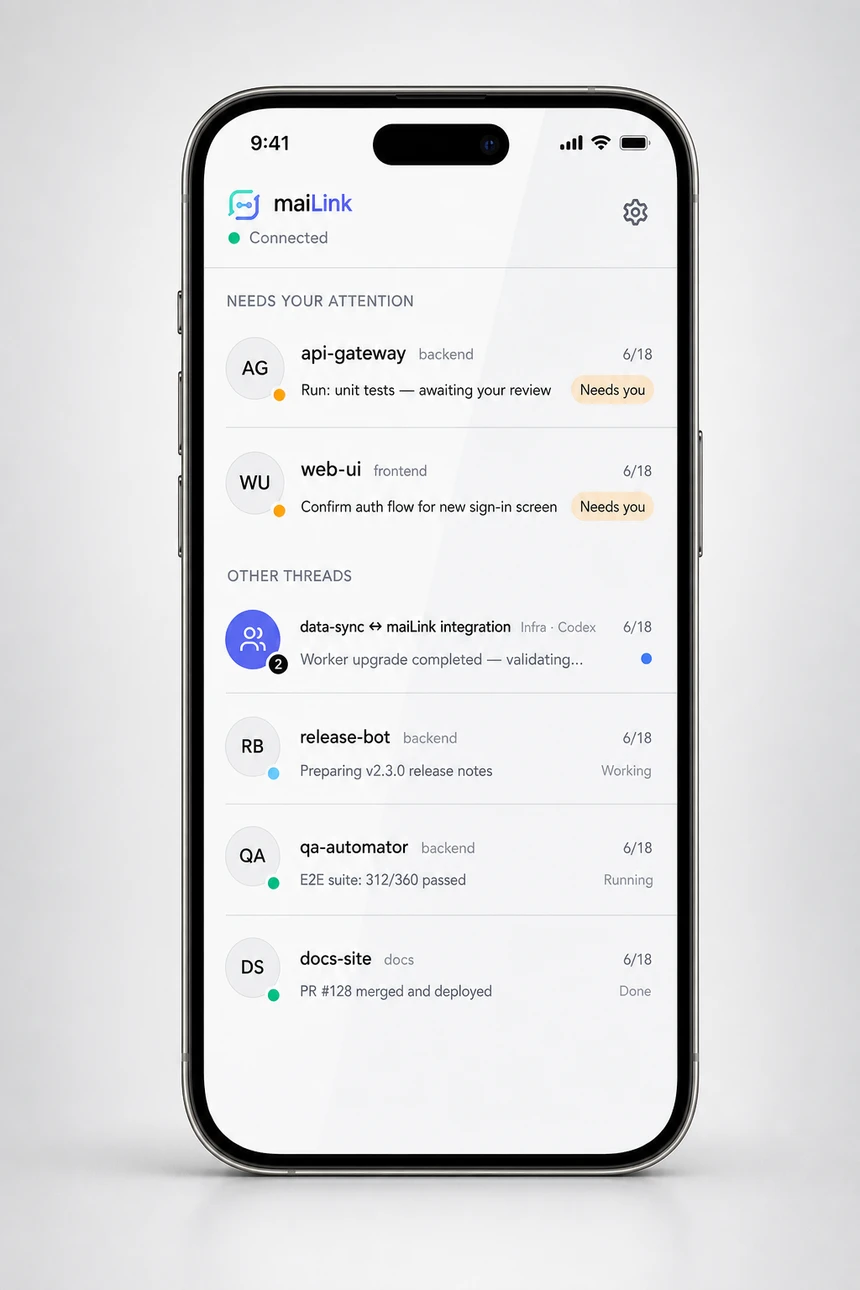
maiLink is a companion app for your phone that connects directly to maiTerm running on your own computer. When an agent needs you — a permission prompt, a question, or it just finished — maiLink rings your phone; you read enough context to decide, and answer from wherever you are. You can also open any reachable agent as a chat and drive it proactively, unprompted. The ring fires only when an agent actually crosses into needing you, so merely opening the app or restoring a session never pushes a phantom “finished.”
maiLink is not a terminal. It renders a distilled chat transcript of an agent session and injects your replies back into it — the session itself never leaves your machine.
No cloud in the data path
maiLink’s defining design decision is what it doesn’t do: it doesn’t route your agents through anyone’s server.
- LAN only. The phone talks to maiTerm over your local network. Your transcripts, prompts, and replies never transit the internet.
- Encrypted and authenticated. The connection is TLS end to end. maiTerm generates its own certificate, and the phone pins it by fingerprint — handed over out-of-band in the pairing QR — so a spoofed endpoint is rejected outright. Every request is authenticated with a per-device token minted at pairing time.
- Off by default. The LAN bridge doesn’t listen until you enable it in Preferences, and no device can connect until you’ve explicitly paired it.
- The existing agent integration is untouched. maiTerm’s MCP/IDE server stays bound to localhost as always — maiLink is a separate, explicitly-gated surface.
The one exception: a content-free doorbell
iOS won’t let an app listen for LAN connections while it’s backgrounded, so one tiny piece of cloud is involved: a push doorbell, hosted on Cloudflare. When an agent needs you and no phone is actively connected, maiTerm sends a content-free wake through it — only the tab name and the kind of event travel, never terminal content, transcripts, or messages. The phone wakes, connects back over your LAN, and pulls the real content directly from your machine. “Actively connected” is verified rather than assumed: an app iOS has suspended in your pocket leaves its connection looking perfectly alive, so maiTerm heartbeats it every twenty seconds and a phone that stops answering is returned to doorbell coverage within one interval. The relay is multi-tenant with per-device capability auth — there is no shared secret, and nothing readable passes through it. You can also point maiTerm at a self-hosted relay in Preferences if you’d rather run your own bell.
What rings it: a permission prompt (Claude’s folder-trust check included), an agent’s question, an agent finishing, a new Overlord escalation, an SSH chat whose account didn’t get there, a new question on one of an agent’s tasks, and a watch script waiting to be allowed. A task question or a watch script rings once, when it starts waiting — not again while it waits, not for one that was already waiting when maiLink started, and not when a reloaded tab carries it over.
Each phone chooses which kinds of event ring it — turn off “agent finished”, say, and keep permission prompts and questions. iOS shows a push the instant it lands, so the choice is enforced on your computer, before anything is sent, and it’s per phone: muting a kind on one doesn’t silence another. Only the ring is muted; the event still shows up in the app when you open it. Needs a maiLink build that offers the switches. Separately, a tab or workspace you’ve muted on the desktop rings no phone at all, for any kind; its chat and what it’s waiting on still show in the app.
Away from home? Use WireGuard
maiLink deliberately has no cloud rendezvous, so out of the box it works within your own network — anywhere in the house or office. To reach your agents from outside, set up a WireGuard VPN back to your LAN rather than exposing anything to the internet. maiLink works over the tunnel exactly as it does at home, and your data stays on a link you control end to end.
Pairing
Pairing is a QR scan, and you stay in control of every device:
- Enable the maiLink bridge in Preferences → maiLink.
- Click Pair a phone — maiTerm displays a one-time QR code carrying the host, port, certificate fingerprint, and a single-use pairing code that expires in two minutes.
- Scan it with the maiLink app. The phone verifies the pinned certificate and redeems the code for its own device token.
Every paired phone appears in the Paired devices list with its name and platform, and each is individually revocable — revoke one and it can no longer connect or ring, without disturbing the others. Each device holds its own token; there is no shared secret to rotate.
Anything that answers for you — a permission, an agent’s question, a task’s question, a watch script, an agent’s request — is accepted only from a paired phone. maiLink also has a local developer token, which any program on your computer can read; it is refused for all of these, so no agent can approve its own request or answer a prompt in another tab.
What you can do from the phone
- Watch live transcripts. Each agent’s conversation streams to the phone per turn — a distilled chat view, not a terminal scrape — whether the agent runs locally, over SSH, or is a Codex session. A Claude agent running on a remote host over SSH gets the same per-turn thread as a local one: maiTerm mirrors its conversation log from the remote machine to your computer as it works, keeping a terminal snapshot only as a fallback for when the connection is unavailable. With maiTerm’s mod loaded on the host, the copy follows each part as it’s written, so what the agent said before a slow tool call reaches you as the tool starts rather than when it finishes. The thread shows the agent’s model, its reasoning effort (low / medium / high / xhigh / max) and a live context-window gauge, and a compaction shows up as a divider in the thread so you know when the agent’s context was condensed. The effort badge is read from what Claude Code itself records with each turn, and it stops recording it once a session has been resumed — so a long-lived session shows no effort at all. maiTerm leaves it blank rather than falling back to the last value it saw, because that value predates the resume and you may have changed the setting since; an absent badge is visibly absent, while a stale one is indistinguishable from a live one. Agent-to-agent mesh and bridge messages render as their own kind of turn — who it came from, which topic it belongs to, and the peer’s actual words — rather than being dropped from the thread or buried as an unreadable tool call, and a fan-out of subagents shows each one’s task instead of a run of identical chips. A message maiTerm typed into the agent — an Overlord rule’s directive, or a task answer sent on your behalf — is marked as such, with the rule’s name when a rule sent it, so it needn’t read as something you said. Needs a maiLink build that shows the mark.
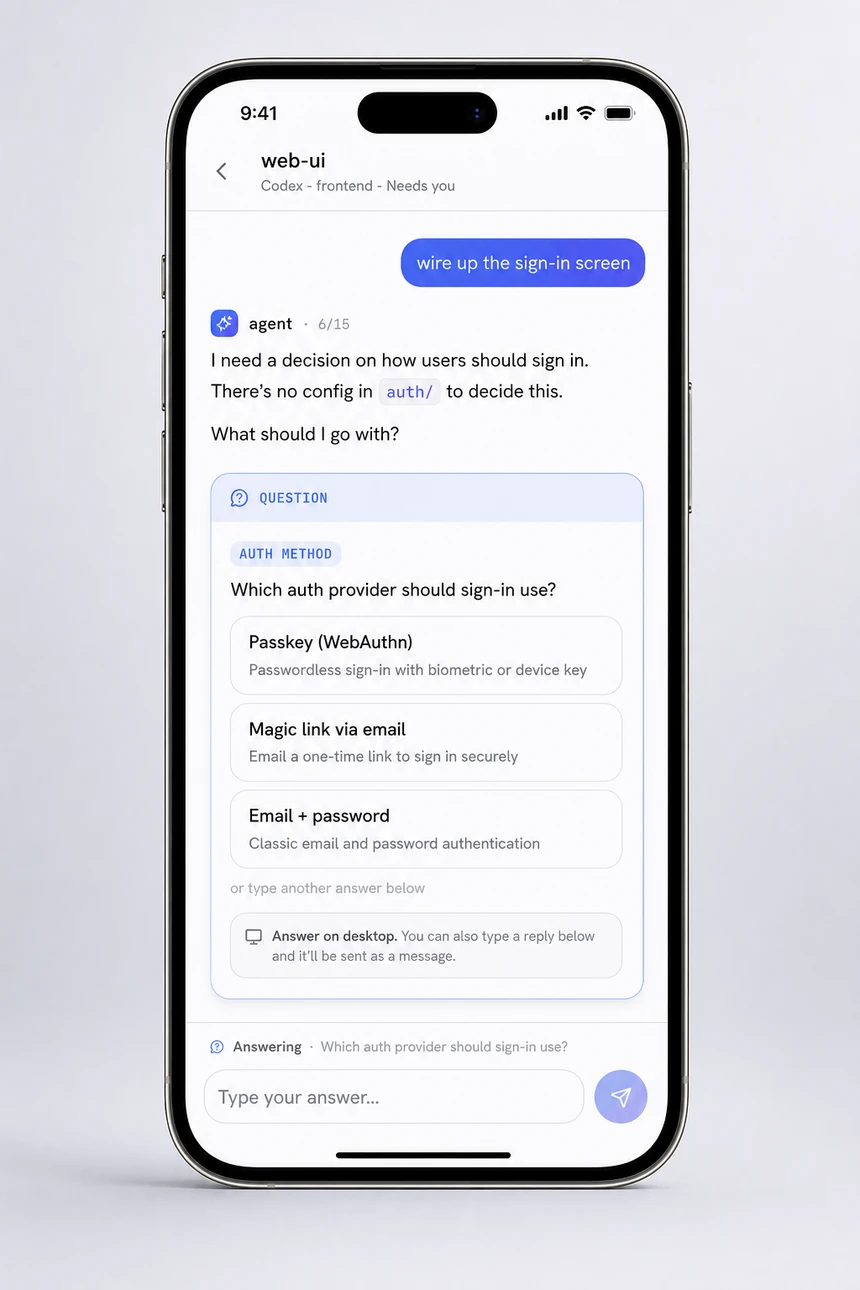
- Answer questions. When an agent asks a structured question (
AskUserQuestion), it arrives as an interactive card — single-select, multi-select, and “Other” free-text answers all work from the phone. The card’s countdown reflects whether your Claude Code build actually expires an unanswered question — newer builds leave them open by default, so a live question never looks falsely expired. In a tab running maiTerm’s mod, your answer is handed to Claude as data — every question of a multi-question form, multi-select choices and Other text included — and an answer that doesn’t take is withdrawn whole, so the card stays answerable and you can simply try again. Without the mod, a given question is answered once and only once: answering it drives Claude Code’s own selector, and if that attempt doesn’t take, maiLink sends what you wrote as an ordinary message instead of trying again. A blind retry would start from an unknown row in a selector that can’t be re-homed, and could record you as having said something you didn’t — sending your words as a message can’t. An answer goes in only while that question’s own selector is on screen; if the terminal has moved on, it’s refused with that question is no longer open in the terminal rather than typed into whatever replaced it. - Approve permissions. Permission prompts arrive the same way, and the card names exactly what you’re approving —
Bash(rm -rf ./dist) — approve?, not just the tool name — so you decide with the full picture. The command shown is the one that actually asked, matched from Claude Code’s own permission hook, and a prompt stays up until it’s answered even while a background subagent keeps working underneath it. When several calls could be the one asking and maiTerm can’t tell which, the card reads Permission requested rather than naming a command your Approve might not answer — check the terminal before approving that one. The choices on the card are the rows Claude Code is actually showing, read off the screen — they vary by request, and a file write may offer only Yes and No — and your tap is re-checked against the screen when it arrives; a choice the dialog no longer shows is refused rather than guessed at. With maiTerm’s mod in the tab, Yes and No are given to Claude by their meaning — an allow, or a deny that stops the turn — whichever row they sit on; any other row, like Yes, and don’t ask again for…, is pressed as its key. That includes dialogs with no footer, like WebFetch’s. When the screen can’t be read, the card offers just Yes and No. Claude Code raises the same “needs permission” signal for some dialogs of its own that aren’t a tool asking — Enable hot reloading?, for one. Their cards offer no rows to tap rather than a guessed Yes and No — answer those at the terminal — and the chat goes back to idle within a couple of seconds of the dialog closing, instead of staying on permission. Codex prompts work too: maiLink sends the keystroke that matches Codex’s own variable-length approval list, so your choice can’t land on the wrong option. - Trust a folder. Resuming Claude Code in a folder it hasn’t been told to trust stops at its “Is this a project you created or one you trust?” check before any session exists, and used to be a dead end from the phone — anything sent to wake the tab confirmed No, exit. That dialog is now a card you answer like a permission, and it rings the doorbell. Nothing maiTerm sends on its own types into it. Needs a maiLink build that shows it.
- Answer the questions agents stop on. When an agent puts a question on a task — a decision, or something only you can do — the chat says how many are waiting, and you can answer from the phone; the answer is typed to the agent just as it is from the desktop. Already dealt with it in the tab? Already handled closes the question and moves the task back to Active without sending the agent anything. A new question rings the doorbell — Has a question for you. Needs a maiLink build that shows them.
- Allow an agent’s watch script. An agent can ask maiTerm to run a short watch script on a schedule and wake it when the script passes — which runs as you, unattended, so nothing runs until you’ve read it. The chat counts the scripts waiting and sits in Needs you; each arrives as the desktop’s card, Allow or Don’t allow, showing the whole script and the folder, schedule and run limit it comes with. Your tap is tied to exactly what the card showed: if any of it has changed, or the script was answered elsewhere, the tap is refused and the card re-read rather than approving something you didn’t see. Don’t allow tells the agent the script will not run. Answered on the phone, the desktop’s card closes too. A new one rings the doorbell — Wants to run a watch script. Needs a maiLink build that shows them.
- Approve what an agent asks to change. Agents can reorganise tabs and workspaces on their own, but changing which agents can message each other, opening a new agent tab, reloading another agent’s tab or a window, restarting maiTerm (to install an update, say), or adding an MCP server for every agent is only a request until you approve it. An MCP server approved from the phone that needs a sign-in waits for it until you’re back at your computer, because the sign-in finishes in that computer’s browser. There’s no bridge picker on the phone, so to bridge two agents from here, tell one to bridge itself and approve its card. The desktop’s card comes to the phone with the same words — what will change, who asked, and the agent’s reason quoted — with Approve and Deny, and the chat counts the requests waiting. Answer on either, and the other’s card closes. A new request rings the doorbell — Asks for your approval. Needs a maiLink build that shows them.
- Read and edit the task board. The task board a tab shares with its agent mirrors to the phone — any runtime, local or over SSH — grouped by workstream and showing each row in the lane the desktop actually renders it in, including one held Blocked by an unfinished prerequisite. You can add a task, retitle one, move it between lanes, or reassign it to another tab; the write lands in maiTerm even while the Mac’s screen is asleep, and the desktop board picks it up without a refresh. Start a task and the tab’s agent is actually told to pick it up, rather than the row quietly going Active with nobody working on it — and the phone reports which happened: the agent was told, Overlord will relay it, or the row is Active and nobody was told (a task with no tab assigned, for instance).
- Run Overlord from the phone. With Overlord on, its escalations and proposals mirror to the phone: approve or dismiss a proposal, clear an escalation, fire a rule at a tab, or drive one. A new escalation rings the doorbell. These actions run in the window that owns the engine, so one sent to a sleeping desktop reports as sent, not confirmed rather than claiming to be done — the next snapshot settles it.
- See the goal it’s being held to. A
/goalinstalls a session-scoped check: the agent can’t end its turn until a judge decides the condition holds, and every attempt that falls short sends it back with a written account of what’s still missing. The thread shows that condition, how many evaluations it has been through, and the judge’s latest verdict in full — away from your desk, that’s the closest thing to an answer for “is it going to finish, and what’s left?”. Each verdict also lands as its own row in the transcript, so the “not yet, because…” rulings read as a progress log where they happened. A goal that’s met, cleared by hand, or ruled impossible by the judge is reported as such until the conversation moves past it, so a completion can’t slip by unseen. Claude sessions only; because it’s read from the conversation log rather than from a running process, SSH agents show their goals too. - See what it’s working on right now. A busy agent used to say only “working…”. The thread now carries a live status line naming the tool it’s running and what it’s running it on —
Bash — npm run build, not just “Bash” — which clears the moment the turn ends, so an idle agent never sits under the last thing it happened to do. - Follow the work it hands off. When an agent delegates to a subagent — a code review, a research pass, the kind of thing that takes minutes — that delegation gets its own row: what it was asked to do, how long it has been at it, and the subagent’s own latest line of progress. A finished one keeps its last words rather than collapsing to a bare “done”. SSH agents get the roster too, though the progress line lives on the remote host and doesn’t travel; the rest does.
- See what’s running in the background, and stop it. Background shells the agent started show up as a roster — what each one is running, the agent’s own label for it, and how it ended if it has. The ones still alive get a Stop button. Liveness is confirmed against your machine’s process list rather than taken from the transcript, which records nothing when a background process exits — so Stop is only ever offered for a process that genuinely exists. This covers Claude agents running on your own computer; an SSH agent’s background shells belong to the remote host, where maiTerm can neither confirm them nor signal them, so those sessions report none.
- Reply and interrupt. Send a free-form message to a running agent — one starting with
!runs as a shell command in Claude Code’s bash mode, as it would typed at the desk — or interrupt it mid-turn — just like pressingEscat the terminal. The tab settles straight back to idle when you stop it, rather than sitting on “Working” until the agent’s next turn. Stopping a turn also clears the input the agent restores into its composer, so the next thing you send can’t merge into the message you just cancelled. - Never sends your half-typed draft. Everything maiTerm types into an agent ends in an Enter, and Claude Code’s input box submits whatever is in it — so a message from the phone typed on top of something you’d started writing at the desk would send both as one. In a Claude tab running maiTerm’s mod, a message sent while the agent is between turns isn’t typed at all: the mod submits it beside your draft, which stays in the box untouched. Otherwise — the agent is mid-turn, or the message carries images, or the tab has no mod — a message that finds a draft in the box is held, shown as held, and goes in order as soon as it can: when the turn ends, for text in a tab with the mod; otherwise once you’ve sent or cleared the draft. A message held for half an hour is dropped rather than landing in a conversation that has moved on; the phone shows which happened. Needs a maiLink build that shows held messages.
- Send while it’s busy — and take it back. A message typed mid-turn is queued by Claude Code rather than delivered, and it appears in the thread marked as queued instead of leaving you wondering whether it landed. While it’s still waiting you can cancel it. That’s offered when exactly one message is queued: Claude Code’s own recall pulls the whole queue back at once, so with two waiting there’s no way to retract just the one you meant.
- Switch a Claude session’s model. The choices come from maiTerm rather than from a list compiled into the phone, so a model your account has been offered shows up in the picker without waiting for a new phone build. Two sources feed it: the models Anthropic has pushed to your account, and a small built-in table of the standard tiers. Each entry carries the exact value maiTerm will send, so nothing is guessed on your behalf — and because a model change is confirmed by the next reply naming it, a switch that doesn’t take is visible rather than assumed. Newer Claude Code builds ask “Switch model?” before a switch that would lose a warm cache — a dialog the phone can’t see — so maiTerm answers it for you: you asked for the switch. The pushed models are read from the account that chat is actually running as; an SSH chat, or one whose account maiTerm doesn’t know, gets the built-in tiers only.
- See which account a chat is running as. With agent accounts set up, each chat carries the account its tab started under — recorded when the tab spawned, not guessed from whichever account is active now, so a chat that kept its account through a switch says so. An SSH chat that was meant to run as an account but whose token didn’t get there is flagged, and rings the doorbell. You can switch the active account from the phone too; as on the desktop, that decides what new tabs use, and the phone is told which running tabs are still on the previous one. Needs a maiLink build that knows about accounts.
- Start a new conversation. Spawn a fresh session alongside the one you’re reading — same host, same working directory, new agent, no shared history. Useful when a thread has drifted and you want a clean start without walking back to your desk. It comes up connected and initialized on its own, in the background, so your desktop view isn’t yanked out from under you.
- Receive files the agent sends you. An agent can hand you files directly — a build artefact, a report it just wrote, a screenshot of a failing test. They arrive in that tab’s chat and in a cross-chat Files list, where they can be previewed or saved. Any file type, not just images: images and video play in place and everything else downloads. SSH tabs are ordinary here — the agent passes its own remote paths and maiTerm fetches them back over the tunnel that’s already up; only a tab whose tunnel is down fails, and it says so. A file’s bytes are copied at the moment it’s sent, so rewriting or truncating it afterwards can’t retroactively change what you were already given.
- See the images it shows you. An agent that points at an image by its path —
— gets it drawn in the thread instead of a broken box, from an SSH host too. Only a path the agent itself wrote in that chat is fetched, and only a real PNG, JPEG, GIF, WebP or HEIC image. Needs a maiLink build that asks for them. - Send images. Snap a photo or pick a screenshot — or several at once — and send them to a Claude Code session; they land as attachments the agent can view. This works whether the agent runs on your computer or on a remote host over SSH: for an SSH agent, maiTerm streams the images to the remote machine before referencing them, all-or-nothing, so a failed transfer never leaves a half-filled prompt.
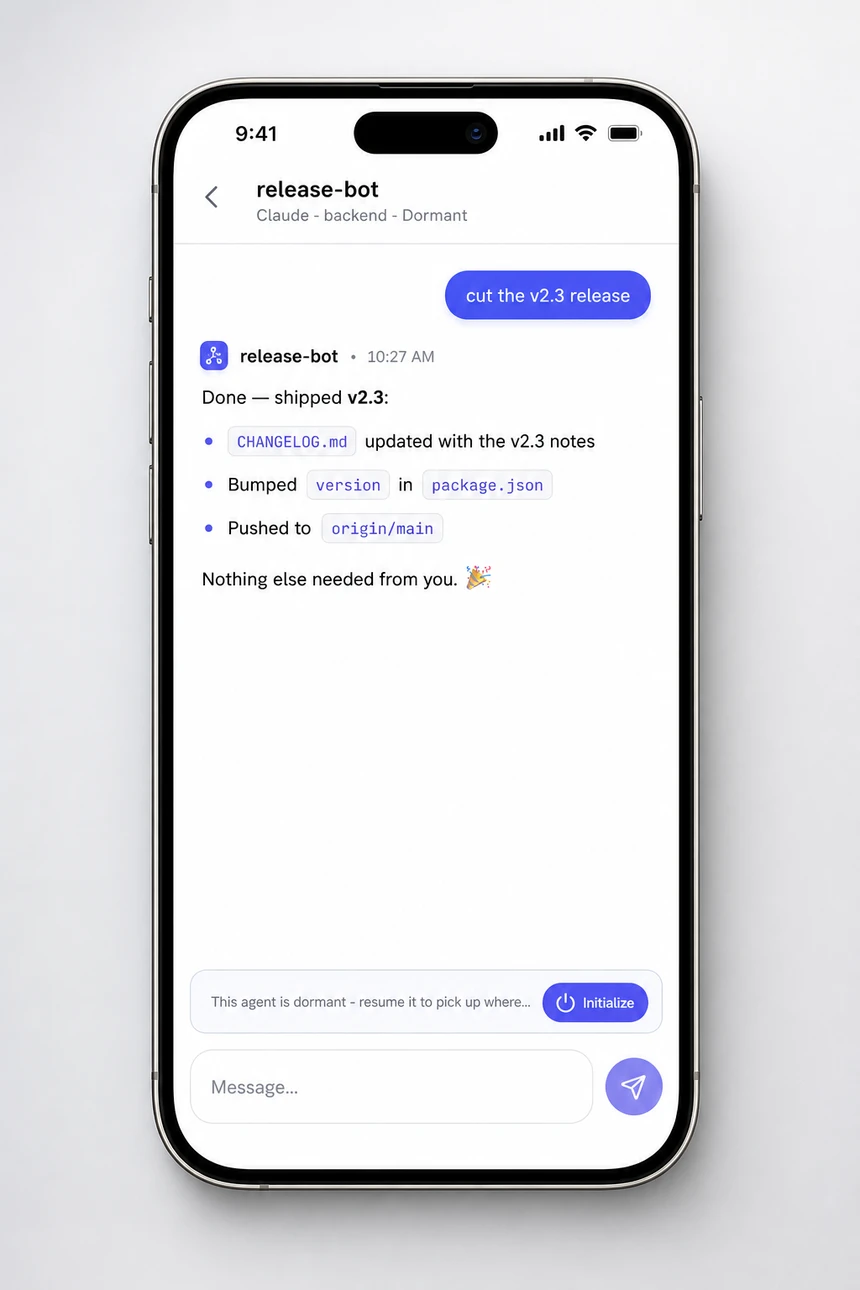
- Wake a tab that isn’t answering. A tab whose agent has ended (network drop, quit) stays reachable, and so does one that’s running but hasn’t registered with maiTerm. Either way the fix is a single Initialize on the thread — available on any tab, not just meshed ones. maiTerm picks the remedy itself, based on whether the agent process is actually alive: a live agent is re-registered, a dead one is auto-resumed. Sending a message to a tab in that state wakes it the same way first, so a message can never be typed at a bare shell prompt and run as a command; if it can’t be delivered, the phone is told why rather than left to guess.
Managing tabs and workspaces from the phone
maiLink isn’t only a window onto running agents — the housekeeping you’d otherwise walk back to your desk for works from the couch too. Every one of these actions lands on the desktop immediately: the tab strip on every open maiTerm window updates live, and other paired phones pick the change up on their next refresh.
- Rename a tab. Give a thread a name that means something. The new name is the tab’s own name on the desktop — it persists, and it survives a resume.
- Archive a tab. Tuck a tab away recoverably. It leaves the tab bar but keeps everything — scrollback, notes, triggers, its resume command — exactly like archiving from the desktop.
- Browse and restore what you archived. A dedicated archived list shows everything you’ve tucked away, across all workspaces, newest first. Restore one and it comes back into its workspace, respawns its terminal, and resumes its agent.
- Close a tab. For the ones you’re done with. This is the destructive option — the terminal is killed and the scrollback deleted, with no archive entry to come back to.
- Wake a suspended workspace. A suspended workspace has no terminals running, so its tabs show a Resume workspace control instead of a dead Initialize. Tapping it resumes the workspace on your computer — respawning exactly the tabs that were live when you suspended it and re-initializing their agents — and the thread becomes usable as soon as it’s back.
- Ready a whole mesh in one tap. Mesh workspaces are badged in the inbox, and a single Initialize all readies every member. Each agent is triaged on its own: one that’s running but not yet registered is simply registered, one that has exited is resumed, and one that’s already live is left alone.
Fast on big sessions
maiLink stays responsive on real workloads — a hundred-tab window and sessions whose logs run to hundreds of megabytes. Opening a thread reads only the tail of the conversation it actually shows, tab metadata is answered from an index rather than by walking every buffer, and maiTerm’s own background loops work from lightweight summaries instead of rebuilding the full chat list every couple of seconds. In practice: thread opens are immediate, and the app doesn’t get slower the longer maiTerm has been running.
Choosing what’s reachable
maiLink only ever surfaces agent tabs (Claude Code, Codex) — never plain shells. Which of those are reachable is up to you, under Preferences → maiLink:
- Default-on — every agent tab is available, except ones you exclude with Make unavailable in maiLink in the tab’s right-click menu.
- Opt-in — flip off Make all tabs available in maiLink, and only tabs (or whole workspaces) you explicitly mark Make available in maiLink appear on your phone.
maiSoft and all its products are owned by Flexmark International Inc.
World Trade Center 200-B, Suite 250, Calle 53 Este, 0832-1626 Marbella, Ciudad de Panama, Panama, Panama