

Workspaces & Panes
Workspaces
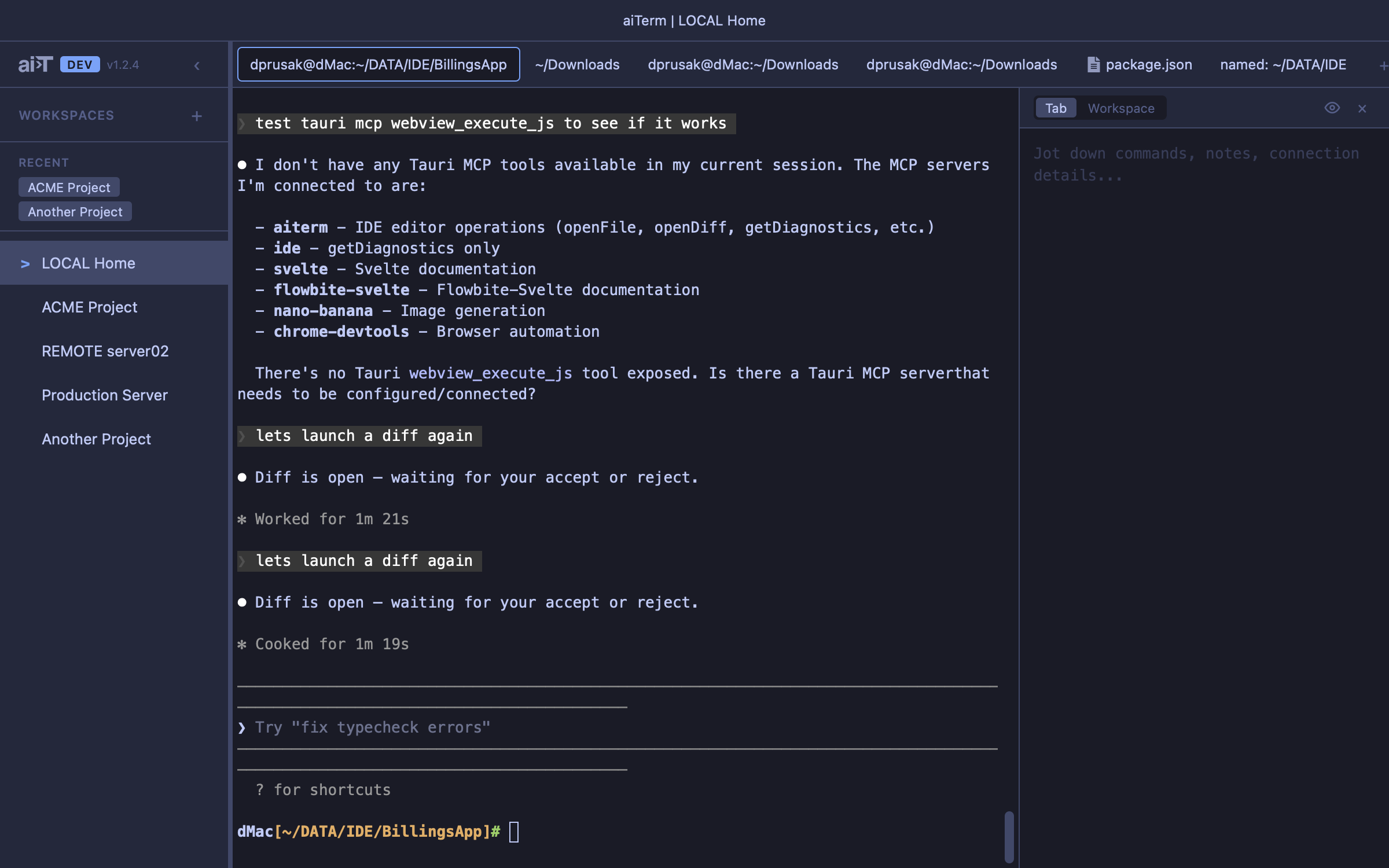
Group your terminals by project. Each workspace has its own pane layout, tabs, and context. Switch between “ACME Project” and “Production Server” without losing your place in either.
Features
- Named workspaces — organize by project, client, or however you work
- Independent layouts — each workspace has its own split pane tree
- Drag and drop — reorder workspaces in the sidebar
- Sort options — default (manual), alphabetical, or recent activity
- Tab count — optional display of tab count after workspace names
- Recent workspaces — collapsible section, toggleable in preferences
- Workspace notes — markdown notes scoped to the whole workspace
- Workspace stack — declare the services the project runs (dev server, API, database) and maiTerm runs them in tabs it owns, under a Stack section on the workspace row. See Workspace Stack
- Move project — right-click a workspace and choose Move project… to move its folder on disk; every tab, service and agent session that pointed at it follows. See Moving a project folder
- Share a workspace — right-click it and choose Share workspace… to save it as a file someone else can open: the same tabs in the same repositories, cloned for them where they don’t have them, without your accounts or scrollback. See Workspace Share
- Mute — right-click a workspace or a tab and choose Mute notifications to silence it, while anything waiting on you still shows. See Muting a tab or workspace
- Overlord exemption — when Overlord is on, an eye-off button on the workspace row takes every tab in it out of supervision; it stays visible while the exemption is set
- Suspend & resume — suspend inactive workspaces to free resources (PTYs are killed, memory released). Resuming brings back exactly the tabs that had a live terminal when you suspended — maiTerm respawns and auto-resumes just those (with a progress modal for larger resumes), so a 20-tab workspace that had 3 agents running comes back with those 3 live, without waking tabs you never started. Auto-suspend after configurable timeout (15/30/60 min). A suspended workspace can also be woken from your phone with Resume workspace in maiLink
- Full-session restore on relaunch — on launch, maiTerm respawns and auto-resumes every tab that was live at last shutdown, across every workspace — one at a time, with a cancellable progress modal — so an agent in another workspace is already picking up where it left off when you switch to it. A window reload reattaches to terminals that are still running instead of respawning them
- Multi-window — open additional windows with independent workspace layouts; window positions remembered per monitor configuration
- Move between windows — right-click a workspace and choose Move to Window to send it to another window, or right-click a tab and choose Move to › a window › a workspace. Terminals keep running through the move. See Moving to another window
- Named windows — give a window a name of its own instead of letting the titlebar follow whichever workspace is active — see Naming a window
Naming a window
The middle of the titlebar shows the active workspace, which changes under you and says nothing about the window as a whole. Double-click it to give the window its own name; press Enter to keep it or Escape to discard. Clear the name and the titlebar goes back to following the active workspace.
The name is the window’s everywhere it’s referred to: macOS uses it in Mission Control and Cmd+Tab, agents see it through listWindows, and it’s what maiLink calls the window on your phone — all of which otherwise have only an internal label like main to go by. A duplicated window keeps the name of the one it was copied from.
Moving to another window
Windows tend to be sorted by what you’re paying attention to, and that changes. A workspace or a tab can move to another window without being closed and reopened:
- A workspace — right-click it in the sidebar and choose Move to Window, then the window. It lands at the bottom of that window’s list and becomes its active workspace.
- A tab — right-click it and choose Move to, then a window (This window is listed first) and the workspace it should land in. You follow the tab only if it’s the one you were looking at; moving a background tab leaves you where you are, and a tab sent to another window doesn’t bring that window to the front.
Agents can do this too, with moveTab and moveWorkspace. A move that would change which agents can message each other — a tab going into, out of or between meshes, or a linked mesh workspace leaving its window — waits for your approval instead.
The terminals keep running through the move: an agent mid-turn carries on, a dev server stays up, an SSH session stays connected and keeps its MCP bridge. A workspace takes its stack services and its tasks with it.
A few things stay put. Only terminal and editor tabs can cross to another window — diff and board tabs can’t — and an editor with unsaved changes has to be saved first. The Overlord workspace belongs to its window. An agent bridge whose partner stays behind in the other window is disconnected.
Moving a project folder
Renaming or moving a project folder normally strands everything that knew it by path: tabs reopen in a folder that isn’t there, and an agent resumed in the new location starts with none of its history, because Claude Code, Codex and Gemini all key their per-project state by the folder’s path.
Right-click a workspace and choose Move project…, then pick where the folder should go. Before anything happens, the dialog lists what will change: the folder renamed on disk, how many tabs and services will point at the new location, the agent state that will be carried, and which running tabs will be restarted — with any agent still mid-turn named, because it will be interrupted. Then:
- Agents in the folder are paused first, in every window. A running agent keeps writing to the path it opened, and would recreate the old folder behind the move. Only once every window has confirmed is the folder moved; if any window doesn’t answer, nothing moves and every paused tab is woken again.
- Everything that pointed at it follows — tabs, open and archived, editor and diff tabs, stack services, follow-ups and the watch-script approvals that go with them.
- So does each agent’s own record of the project — Claude Code’s sessions, memory, folder trust and prompt history (for every account), Codex’s trust and threads, Gemini’s project registry and trust.
- The paused tabs come back in the new folder, each resuming its agent in the same session.
The folder stays on the same disk: to move one to another volume, move it yourself and let maiTerm find it (below). SSH tabs and remote folders aren’t covered, and neither are agents running in another terminal app, which keep writing under the old path.
When a folder has gone missing
If a folder was moved outside maiTerm, a tab whose saved folder is gone opens in your home folder — a tab always opens — but its agent isn’t resumed there, where it would find nothing, and the folder it wanted is kept rather than saved over with home. maiTerm asks Locate moved project: where the folder is now, suggesting likely matches nearby. Pick one, or browse to it, and Use this folder points everything at it and restarts those tabs in the right place. A suggestion is never applied on its own, since a wrong guess would run every agent in the wrong project.
Muting a tab or workspace
An agent you’ve left to grind through something long doesn’t need to tell you every time it stops. Right-click its tab and choose Mute notifications, or right-click a workspace in the sidebar to mute every tab in it. A muted tab sends nothing: no toast, no OS notification, no sound, no terminal bell, and no push to your phone through maiLink — permission prompts and questions included.
What it never hides is what’s waiting on you. A muted agent’s questions still wait in the Loom, in the corner of its terminal, and on the tab’s own indicators, and its chat still shows on your phone. It just doesn’t interrupt anyone to say so.
A muted tab carries a struck-through bell; a muted workspace shows one on its sidebar row, rather than one on each of its tabs. Unmute notifications in the same menu undoes it, and a tab inside a muted workspace is unmuted from the workspace. Reloading, duplicating or splitting a tab keeps its mute. An agent can mute or unmute a tab or workspace with setMuted when you ask it to. In Claude Code, /maiterm mute and /maiterm unmute do it for the agent’s own tab, and /maiterm mute workspace for its workspace.
Panes
Panes are the containers within a workspace. Each pane holds one or more tabs (terminal, editor, or diff).
Split Panes
- Horizontal and vertical splits — create any layout you need
- Drag to resize — adjust split ratios by dragging the divider
- Recursive splits — splits within splits for complex layouts
- Terminal persistence — terminals survive split tree changes via the portal pattern
- Drag-to-split (off by default) — dragging a tab onto another pane moves it there. Dropping it on a pane’s edge to create a split is opt-in, under Preferences → Tabs → Dragging: a pane’s top edge sits directly under its own tab bar, so a few pixels of drift while clicking a tab used to split the pane.
Cmd+Dand the tab’s context menu split either way
Per-Tab Notes
Each tab has its own markdown notes panel. Track TODOs, paste connection strings, jot down what you’re debugging — right next to the terminal doing the work.
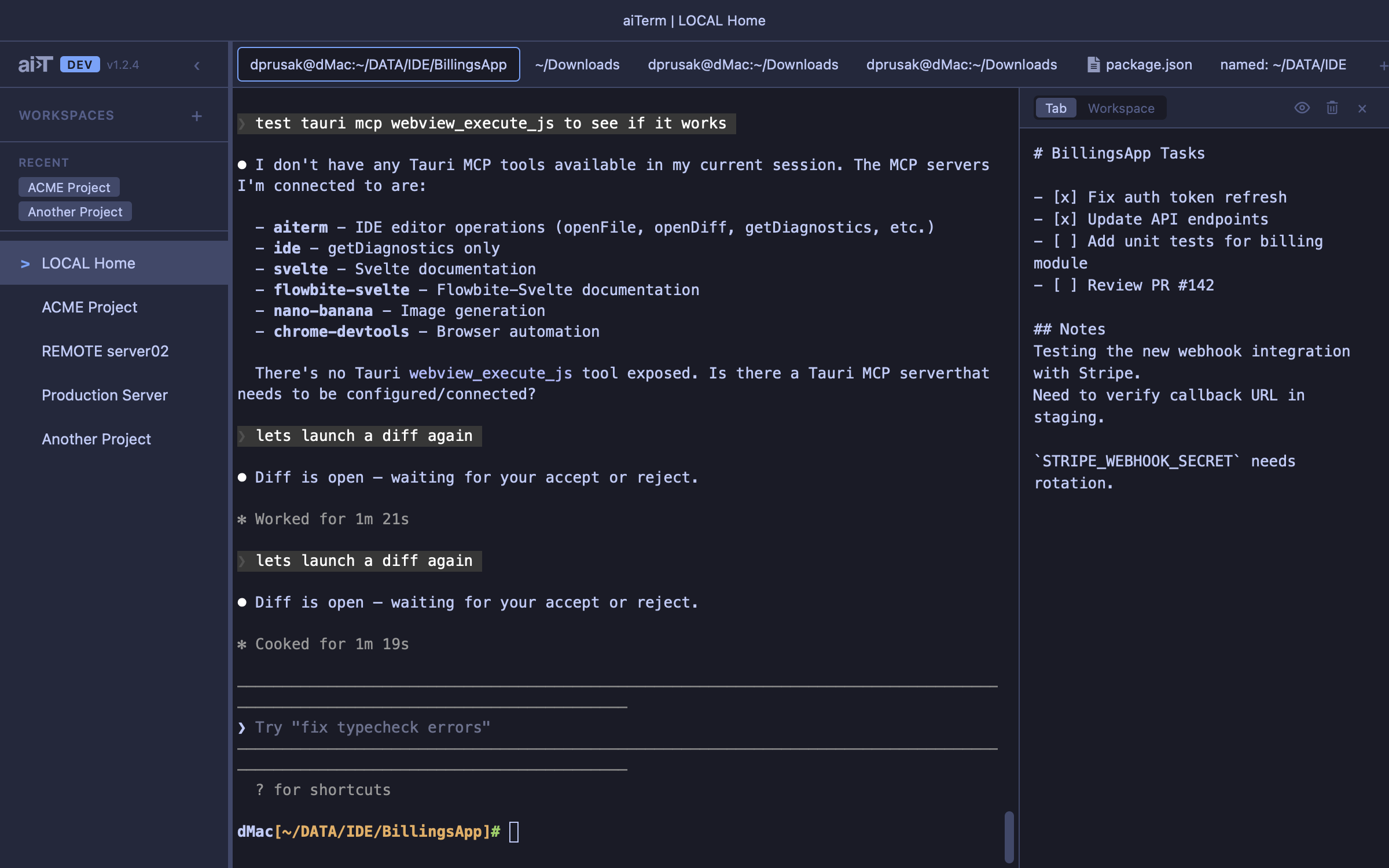
Your coding agent — Claude Code or Codex — shares the same panel. Ask it to write down what it just did, keep a running TODO list, or summarize a debugging session, and it edits the notes directly through MCP tools — no copy-paste. It can read, write, update, organize, merge, and clean up both tab and workspace notes, so your notes stay current while you work.
- Markdown or plain text — your choice per tab
- Agent-maintained — ask your agent to write, update, and tidy your notes via MCP tools
- Interactive checkboxes — rendered in preview mode
- Editable tables — click any table cell in preview mode to edit it in place;
Tabmoves between cells - Edit and preview modes — state persisted per tab
- Configurable — font size, font family, panel width
maiSoft and all its products are owned by Flexmark International Inc.
World Trade Center 200-B, Suite 250, Calle 53 Este, 0832-1626 Marbella, Ciudad de Panama, Panama, Panama