

Workspace Stack
Every project has a handful of things that have to be running before any of it works: a dev server, an API, a database, a queue worker. You start them by hand in four tabs, lose track of which one crashed, and then your agent starts a fifth copy of the dev server because nothing told it the first one was already up.
The stack is a workspace saying what its project runs. maiTerm starts each service in a tab it owns, watches its exit code, restarts it when it crashes, and shows the whole set under the workspace in the sidebar — for you, and for every agent in the window.
A service is a tab maiTerm owns
There is no process manager hiding behind this. A running service is a terminal tab: maiTerm mints one, types the command into it after the shell’s own prompt, and watches what comes back. That means a service gets everything a tab already has — real scrollback, exit codes, colour, a TUI that renders properly — and stopping one is a ^C into the same shell, not a signal fired at something you can’t see.
What it doesn’t get is a slot in your tab strip. A service tab isn’t in the strip, has no Cmd+1–9 number, and can never become a pane’s active tab, so it can’t be closed by a stray Cmd+W or picked up by anything that reaches for “a tab”: Quick Open won’t cd into your dev server, Suspend Other Tabs won’t kill your database, a task can’t be assigned to it, and the workspace’s own activity dot ignores a log that writes all day. Agents see it named as the service it runs rather than as a tab they can switch to.
Declaring what a project runs
Right-click a workspace row and choose Import from project…. maiTerm reads what the directory already declares and offers it as a checklist:
| Source | What it offers |
|---|---|
package.json | Service-shaped scripts — dev, start, serve, watch, preview, storybook — run through the package manager your lockfile implies (npm, pnpm, yarn or bun) |
Procfile | Every entry, as written |
docker-compose.yml / compose.yaml | Each service under services:, plus one row for docker compose up |
justfile / Makefile | Service-shaped recipes and targets |
The obviously-dev ones — dev, start, serve, up — come pre-ticked; the rest are yours to pick. Anything already in the stack is shown ticked and disabled, so re-importing after you add a script is a safe thing to do.
Add service… does the same job by hand, from the workspace row’s menu or the + in the Stack section. A service is a name, a command exactly as you’d type it, a directory, optional KEY=value environment lines, whether it starts with the workspace, and what to do if it crashes.
The sidebar
Services live in a Stack section under their workspace row. Each line carries a status dot, the service’s name, its last known address, and how long it’s been up:
| Status | Means |
|---|---|
| stopped | Not running. A note says why if maiTerm held back — “the shell is mid-command”, “its tab was reloaded — start it again” |
| starting | The command has been sent and hasn’t begun producing output yet |
| running | The process is alive |
| ready | It announced an address, or an agent reported it ready |
| crashed | It exited on its own with a failure code |
The workspace row itself carries a rollup dot, with the same batch semantics as the agent indicator: red if anything crashed, amber while anything is starting, green only when every auto-start service is up, and amber for a partly-up stack. A green rollup means the project is actually running, not that something in it is.
Right-click a service for Start / Restart, Stop, Show console, Edit… and Remove (held while it’s running — stop it first). Right-click the workspace row for Start stack, Stop stack and Restart stack, which walk the services in order.
It reads the address off the service
A dev server tells you where it is serving the moment it comes up — Local: http://localhost:5173/, Listening on port 8080, Serving HTTP on 0.0.0.0 port 8000. maiTerm reads that line out of the service’s own output and fills in the address, marks it ready, and shows it to every agent in the workspace. Nothing sniffs sockets and nothing has to be configured.
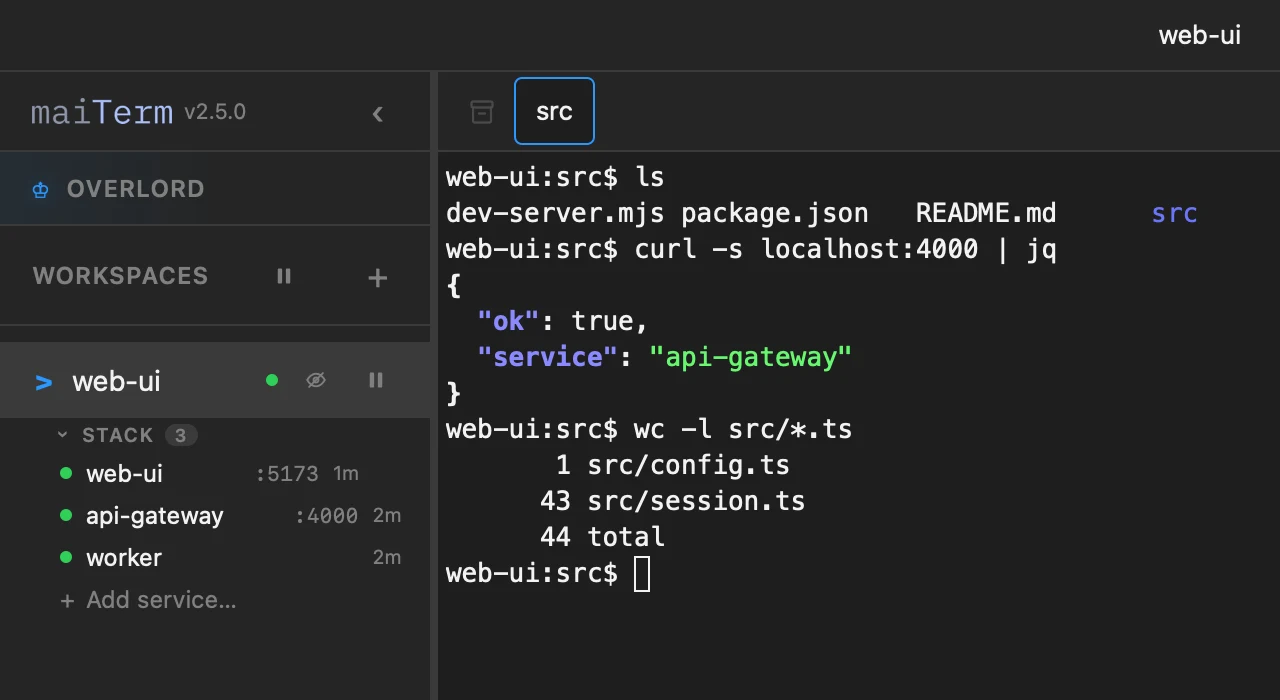
The worker above is the honest case: it serves nothing and announces nothing, so it stays running with no address rather than pretending to have one.
An address that a browser can open becomes a launch: shift-click the service’s row, use the ↗ that appears on hover, or pick Open http://localhost:5173 from its right-click menu. Only for services actually serving something openable — a database’s :5432 is an address, not a page. And the link is offered only while the service is up and the address came from this run: a port carried over from the last one might now belong to something else entirely.
Two things it is careful about, both learned from real output:
- It waits for the service to speak. The terminal echoes the command maiTerm typed, so
uvicorn app:app --port 8000would otherwise “announce” port 8000 before uvicorn had started. maiTerm ignores everything up to the point the shell confirms the command is running, and a bare port number only counts when something like listening or serving is in front of it. - It ignores a port the service didn’t get.
Port 3000 is in use, trying 3001 instead.names the port it failed to bind, and it prints before the one it succeeds on. Lines carrying a conflict or a failure are skipped, so the address you get is the one it is actually serving.
It’s a start-up scan rather than a permanent watch: it stops at the first address a run announces, and gives up five minutes into that run — a queue worker that prints all day and serves nothing shouldn’t be searched for an address it is never going to give.
If a service announces itself in some way maiTerm doesn’t recognise, put a regular expression in Ready when output matches in the service’s settings — with an optional port group to capture the number — and that takes over from the built-in shapes. An agent can also just tell it, with updateService.
The console drawer
Click a service and its console opens over your work — a drawer along the bottom of the terminal area, not a dock beside it. Click the service again, click the tab behind it, or press Escape, and it’s gone.
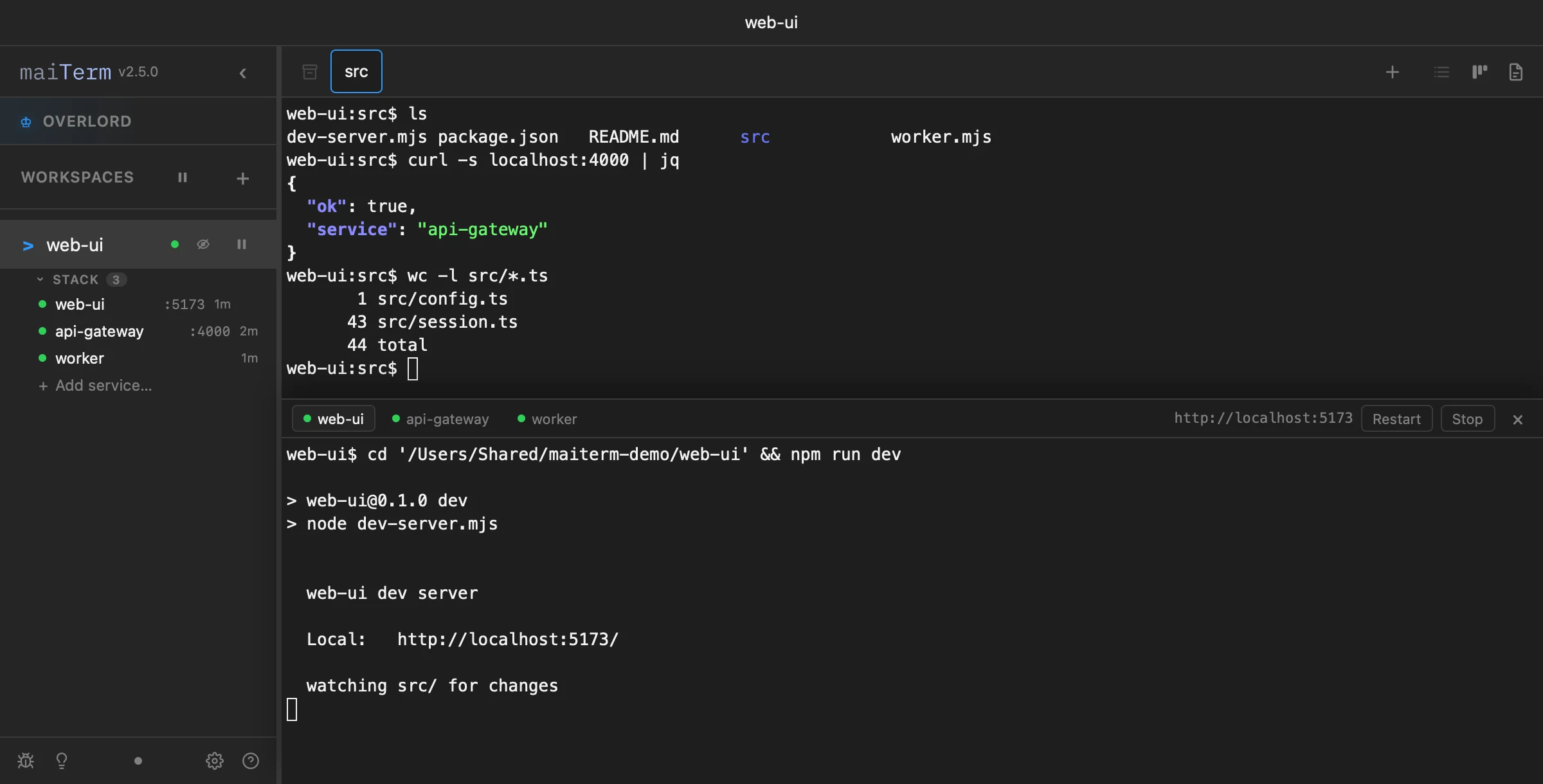
That shape is deliberate. A side dock takes width from the terminal you’re working in, and a width change makes an agent re-render its whole transcript into your scrollback. The drawer floats, so the tab underneath never sees a resize — and the service’s terminal is never moved between panes either, so showing or hiding a service does nothing whatsoever to the process.
Inside the drawer: a pill per service so you can flick between them, the last reported endpoint, and Start / Stop / Restart for the one you’re looking at. Drag its top edge to resize it; the height is remembered.
It slides up over the terminal area and dims what it covers, but the dimming is only a shade — the tab underneath is still live, and clicking it is one of the ways to close the drawer.
The drawer deliberately doesn’t take the keyboard when it opens — a peek shouldn’t steal focus from the tab you’re typing in. Click into the console to type, and while your cursor is in there Escape belongs to the shell, as it should; use the ×, the sidebar row, or a click on the work behind to put the drawer away.
Crashes, restarts and stopping
A service set to restart on crash comes back on its own, backing off further each time — one second, then two, four, eight, sixteen, thirty. After five restarts in ten minutes it gives up and says so on the row, rather than thrashing forever against something that isn’t going to work.
The difference between a crash and a stop is the exit code. A clean exit and a ^C (130) are both “it stopped”; anything else crashed. So pressing ^C in a service’s own console is a stop, and doesn’t trigger a restart. Asking maiTerm to stop a crashed service cancels the restart that was already armed, because a stop is an answer to the crash.
Two more things maiTerm refuses to do:
- It won’t type over a running program. A start waits for the shell’s own prompt, and if something else holds that shell the start is declined with what’s in the foreground rather than sending a command line into the middle of it.
- It only ever signals the process it started. A stop compares against the job maiTerm recorded when it typed the command; with nothing recorded, it refuses.
Runtime state is never written to disk, so a workspace can’t come back from a restart claiming something crashed while you were away. What is remembered is the binding: after a tab reload or a workspace suspend the service is filed as stopped with a note saying which of the two happened, and starting it again picks up the same tab.
The stack comes back as you left it. A service that was running when you quit maiTerm starts again when it next launches — in every workspace, not only the one on screen — and one that was running when you suspended a workspace starts again when you resume it. A service you stopped stays stopped: Stop, Stop stack, or a ^C or clean exit in its console all count as you stopping it, while a crash, a suspend or quitting maiTerm don’t. Reloading a window isn’t a relaunch, so a service still running underneath it is left alone.
Start with the workspace brings a service up when its workspace becomes active — once per activation, so switching back and forth doesn’t restart anything.
What your agents get
With the stack on, every agent session is told what this workspace runs and what state it’s in right now — web (ready, http://localhost:5173), api (crashed), db (running, :5432) — so an agent picking up mid-project stops trying to start a dev server that’s already serving. A stopped service is named without its last endpoint, because a URL nothing is listening on is an invitation to curl a dead port.
Then eleven tools, all scoped to the calling tab’s workspace:
| Tool | What it does |
|---|---|
listStack | What the project runs, as maiTerm sees it — status, uptime, port or URL, command, last exit code, and why a service is held |
getServiceOutput | A service’s recent output — its log — for reading a failure instead of restarting blind |
startService / stopService / restartService | The verbs. They reply once the command is running, which isn’t the same as serving |
startStack / stopStack | Every auto-start service, or everything that’s running |
waitForService | Block until the service announces it’s serving, and return its last 20 lines if it doesn’t — what to call before hitting a service you just started. It waits for the address, not merely for the command to have started. A service that announces nothing a browser would recognise never gets there, so pass a short timeout when waiting on a worker |
updateService | Correct an address maiTerm read wrong, supply one for a service that announces nothing, leave a one-line note for the sidebar, or edit the definition |
createService | Register something this project runs. Called with no arguments it instead returns what the directory declares, which is the fast way to set a project up |
removeService | Retract a definition — refused while it’s running, and refused outright for a service you created |
One rule makes this safe to hand over: createService does not start anything. Registering and starting are two deliberate acts, so you see both.
An endpoint carries where it came from — observed (maiTerm read it in the service’s own output), reported (an agent called updateService), or stale, carried over from a previous run. Agents are told not to trust a stale one, and updateService is now the correction path rather than the discovery one.
Turning it off
The stack itself is part of the sidebar and always available. What’s switchable is the agent half: Preferences → AI Agents → Workspace stack → Let agents see and control this project’s services. Turn it off and the eleven tools and the session briefing both disappear; the services stay yours to run from the sidebar.