
Chrome Extension
An agent fixing a bug in a web app usually can’t see the bug. It reads the code, guesses, and asks you to reload the page and tell it what happened. Tools that give an agent a browser give it a new one: no logins, none of your data, often not the state the bug needs.
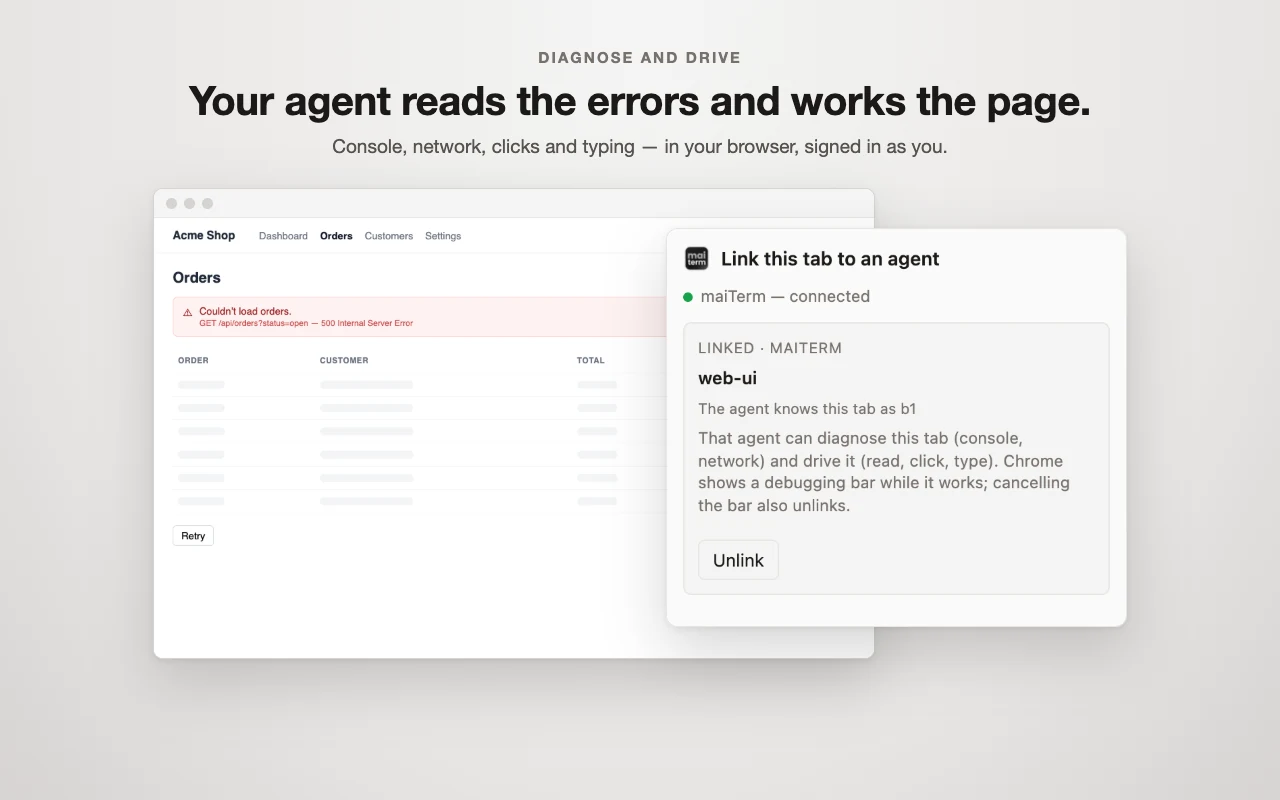
The maiTerm extension for Chrome lets an agent work in your browser instead, in the tabs you choose. Link a tab to an agent tab in maiTerm, and that agent can:
Diagnose it
- read the console: errors and warnings, uncaught exceptions with the file and line they came from, and the browser’s own warnings (a blocked script, a failed load);
- read the network: which requests failed, their status and timing, and the body an API returned, which is usually where a broken call says why;
- read the page as an accessibility tree: headings, text, links, buttons and form fields with their values.
Drive it
- click, type, press keys, and go to an address, back, forward or reload;
- take a screenshot;
- run JavaScript in the page.
All of it in your real, signed-in session, and in the background: the tab doesn’t have to be the one you’re looking at, so you can keep working in another while the agent works in its own.
You stay in control
- Only you link a tab, from the extension’s icon in the browser. No agent can link one, pick one, or see your other tabs.
- Each tab has one agent. An agent can use only the tabs linked to it, and a tab is linked to one agent at a time. The one tab you don’t link by hand is one a linked page opens for its agent, such as a sign-in popup (below).
- Chrome shows that it’s happening. While a linked tab is in use, Chrome shows its “started debugging this browser” bar. Chrome shows it in every tab of every window, because it’s about the whole browser, but only the tabs you linked are attached; the rest stay out of the agent’s reach. Cancel on that bar ends every link at once. To end one, close the tab, click Unlink, or turn the feature off in maiTerm.
- Nothing leaves your computer through the extension. It talks only to maiTerm on your own machine. What the agent reads from the tab goes to that agent, as everything else it reads does. See the privacy policy.
Setting it up
The extension needs the maiTerm app; on its own it does nothing.
Install it from the Chrome Web Store. It needs maiTerm 3.11.0 or later.
- In maiTerm, open Preferences → Chrome extension and turn on Let agents diagnose and drive linked browser tabs. This gives agents the browser tools and lets the extension find maiTerm.
- Add the extension, once per browser: Add from the Chrome Web Store in that section opens its store page, where you click Add to Chrome.
- Click the puzzle-piece icon in Chrome’s toolbar and pin maiTerm. That icon is where you link a tab.
The store updates the extension on its own. If you loaded it unpacked before it was in the store, remove that copy on chrome://extensions first: they share an id, and Chrome keeps only one.
Loading it unpacked instead
maiTerm also keeps a copy of the extension on disk that matches the app exactly, which can be newer than the store’s while a store review is pending. Under Preferences → Chrome extension → Load it unpacked instead:
- Click Open in Chrome to open Chrome’s extensions page (
chrome://extensions). - Turn on Developer mode, the switch at the top right.
- Click Load unpacked and choose the folder maiTerm shows. Copy path and Show in Finder are beside it. The folder is inside your hidden Library: in Chrome’s file picker, press ⌘⇧G, paste the path and press Return.
That copy updates with maiTerm, not the store.
It works in Chrome and other Chromium browsers: Brave, Edge, Vivaldi, and Arc on macOS. Within 30 seconds the browser appears under Connected browsers.
Linking a tab
- Open the page in your browser.
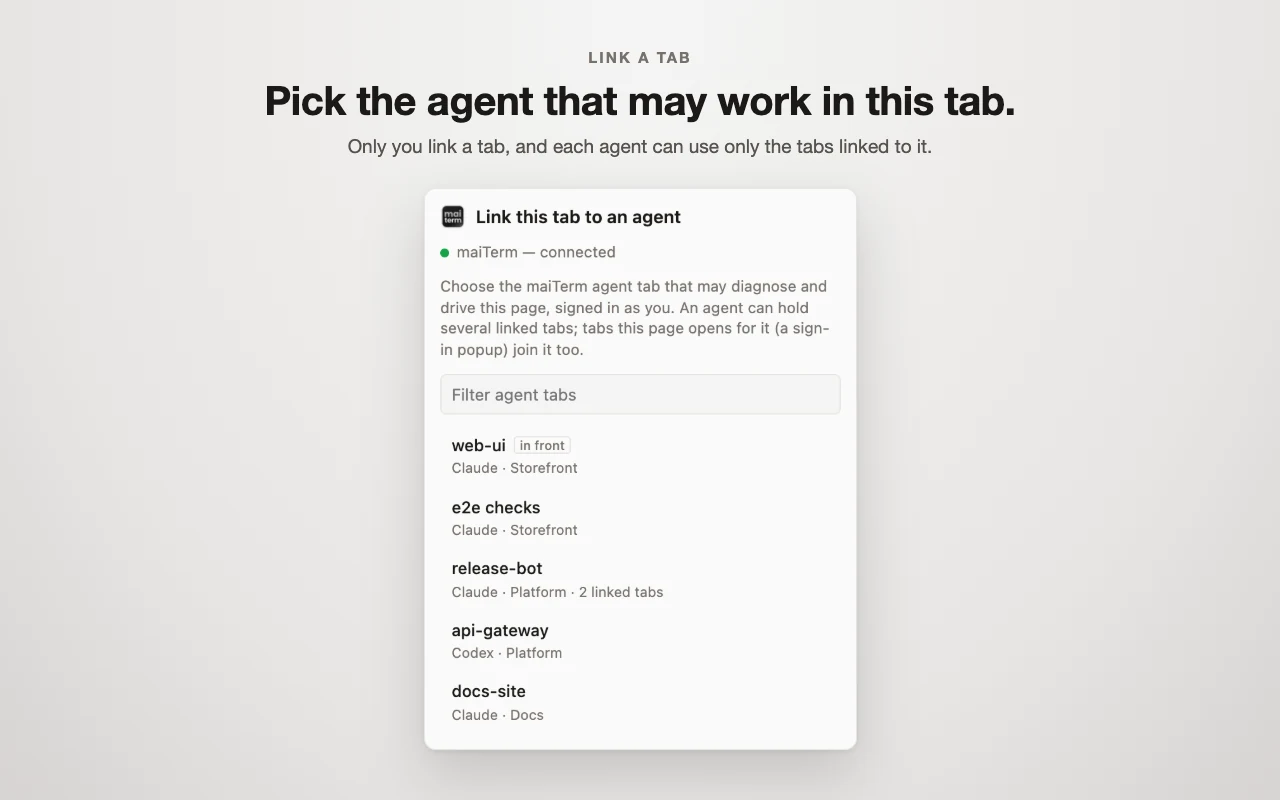
- Click the maiTerm icon in the toolbar. The popup lists your agent tabs in maiTerm, the one in front in each maiTerm window first (marked in front), then the rest by when you last used them, with a filter.
- Choose one. The page is now that agent’s to use. Chrome’s tab strip shows it: the tab moves into a coloured tab group named after the agent, maiTerm · nova-agent say, and the extension’s icon shows on the tab the name the agent knows it by: b1, b2 and so on. In maiTerm, a notification says so, and the agent’s tab shows a browser icon (with a count when it holds several); hover it to see which pages, or click it to bring the page to the front in Chrome.
When a link ends, however it ends, the tab leaves the group and goes back where it was. A tab already in a tab group of your own stays in your group, and one you’ve dragged somewhere else since stays where you put it. The extension’s menu lists every linked tab, from whatever page you open it on, with a click to go to each.
Tell the agent what to look at: “the orders page won’t load, find out why” is enough for it to read the failing request and its response. To end it, click the icon again and Unlink, or click Unlink beside it in Preferences → Chrome extension → Linked tabs, which lists every link.
A link follows the tab: navigating, or reloading the page, keeps it. Reloading the agent’s tab in maiTerm keeps it too. Links don’t outlive the browser: after a restart of Chrome, link the tab again.
Several tabs and popups
An agent can hold up to eight linked tabs: an app and its admin panel, two users in a chat app, a page and the docs it’s built from. Link each one as above. The agent knows them as b1, b2 and so on, the name on each tab’s maiTerm icon, and works in whichever one it names. Until it names another, it stays on the one it named last: a tab you link beside it, or one that joins, doesn’t pull it away.
A tab a linked page opens joins that page’s agent by itself, so a flow like “Sign in with Google” can finish in its popup. That happens when the page opens a popup window, or opens a tab as the agent clicks, types or presses a key in it. A tab you open yourself from a linked page, with a middle-click say, stays yours, even while the agent is reading that page. The agent is told on its next step when a tab joins, closes, or is unlinked or moved to another agent.
Linking a tab that’s already linked to another agent moves it to the one you choose.
The tools
Agents in an agent tab get these while the feature is on. Every one acts on the caller’s own linked tabs: the one it names with tab (b1, b2…), or the one it named last. An agent with no linked tab is told to ask you to link one.
| Tool | What it does |
|---|---|
browserStatus | This agent’s linked tabs, each with its name, title and address, which one opened it, and which is current |
browserConsole | Console messages, uncaught exceptions with their source, and the browser’s warnings since the link — or only errors |
browserNetwork | Requests since the link: method, address, status, failure, size and time; failed ones only, or one request’s response body |
browserSnapshot | The page as an accessibility tree, each element it can act on numbered for the tools below |
browserClick | Click an element from the snapshot, with real mouse events |
browserType | Type into an element, or the focused one |
browserPressKey | Press one key: Enter, Tab, Escape, arrows and so on |
browserNavigate | Go to an address, or back, forward or reload, and wait for the page |
browserScreenshot | What the tab shows, as an image |
browserEval | Run a JavaScript expression in the page and return its value |
Console and network records start when the agent first uses the tab, so for a bug that happens on load, the agent reloads the page first. The extension keeps the last 200 console messages and 300 requests per linked tab, in memory, and drops them when the link ends.
Worth knowing
-
The debugging bar stays while tabs are linked. The extension stays attached so it records console errors and requests while you use the page yourself; that is what lets an agent read the errors from a bug you just reproduced. If the bar bothers you, Chrome hides it when started with
--silent-debugger-extension-api, which hides it for every extension, so use it knowingly. -
A password manager’s popup can lock the agent out. Password managers such as 1Password show their autofill menu inside the page as their own extension’s frame when a field has focus (sign-in fields, but also address, card and contact fields on any form), and Chrome lets no extension work in a tab while another extension’s frame is in it. The agent waits a few seconds for it to close, then asks you to dismiss it (Escape, or a click elsewhere on the page). Agents are told never to fill in sign-in forms or type credentials: they ask you to sign in yourself.
To stop the menu appearing on fields, turn off the password manager’s in-page suggestions and keep filling from its toolbar icon or keyboard shortcut. In 1Password: open the extension’s Settings → Autofill & save, and under Suggestions turn off Show autofill suggestions when a field is selected. Leave Offer to fill and save logins and other items in fields on; turning it off also stops 1Password filling at all.
-
It acts as you. Clicking “Delete” in a linked tab deletes, in your account. Link a tab you’re happy for the agent to work in, and say what it may and may not do.
-
Agent tabs only. The popup lists maiTerm tabs running an agent, not shells or stack services.
maiSoft and all its products are owned by Flexmark International Inc.
World Trade Center 200-B, Suite 250, Calle 53 Este, 0832-1626 Marbella, Ciudad de Panama, Panama, Panama